
Image files are the single largest contributor to page weight on the average WordPress site. Google's own data shows that images account for more than 50% of total page bytes across the web. If you want to pass Core Web Vitals, improve your PageSpeed score, and keep bounce rates low, converting your images to WebP is the highest-leverage action you can take today.
What Is WebP and Why Does It Matter?
WebP is a modern image format developed by Google and released in 2010. It supports both lossless and lossy compression in a single format, plus transparency (alpha channel) and animation. The compression gains are substantial: WebP lossless images are 26% smaller than equivalent PNGs, and WebP lossy images are 25–34% smaller than equivalent JPEGs at the same visual quality level.
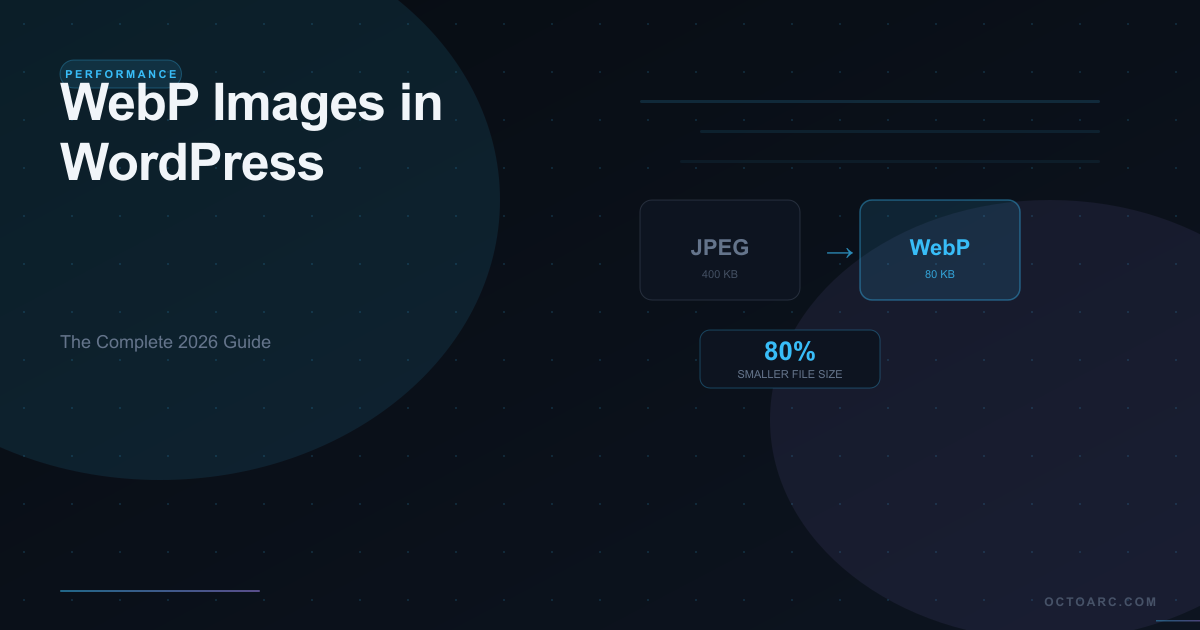
In practical terms, a 400 KB hero image served as JPEG can drop to 80–120 KB as WebP without any perceptible quality difference. Across a page with 10 images, that can save 2–3 MB per page load — reducing your Largest Contentful Paint (LCP) time by hundreds of milliseconds and pushing your PageSpeed score from the 60s into the 90s.
Browser Support in 2026
WebP is now supported by 97%+ of global browsers. Chrome, Firefox, Edge, Samsung Internet, and Safari (since version 14, released in 2020) all support WebP natively. The only holdouts are very old versions of Internet Explorer and pre-2020 Safari on iOS — a combined market share of under 2%. This means you can serve WebP to virtually everyone without a fallback for the vast majority of sites.
Three Ways to Serve WebP on WordPress
Method 1: Server-Side PHP Conversion (No External API)
PHP 5.4+ includes the GD library with WebP write support built in. This means your hosting server can convert JPG and PNG files to WebP directly — no API calls, no external services, no per-image fees. The conversion happens on your server, your images never leave your host, and there are no usage limits.
This is the approach PixSwift Pro uses. The plugin hooks into WordPress at the core level, converts images on upload and in bulk, then rewrites image URLs in your HTML, CSS, and lazy-load attributes — so every image on your site is automatically served as WebP without any manual work.
Method 2: Cloud Compression Services (Imagify, ShortPixel, Smush)
Cloud services upload your images to their servers, compress and convert them, then return the optimized files. They typically charge per image via a credit system and require a monthly or annual subscription to maintain access. While effective, they introduce three concerns: your images leave your hosting environment, ongoing subscription costs add up, and API outages can break your image optimization pipeline.
Method 3: CDN-Level Conversion (Cloudflare, BunnyCDN)
CDNs like Cloudflare (on Pro plan and above) can automatically serve WebP versions of your images based on the Accept header in the browser request. This works without modifying your origin server but requires a CDN subscription and only converts images at the edge — not at the origin — which means original large files still transfer from your server to the CDN.
How WordPress Handles WebP Natively
Since WordPress 5.8, the platform supports WebP uploads natively — meaning you can upload WebP files directly to the Media Library. Since WordPress 6.1, it also generates WebP sub-sizes from JPEG uploads if the server's GD library supports it. However, these native features only handle new uploads. For existing media libraries with thousands of JPG and PNG files, you still need a plugin to handle bulk conversion and URL rewriting.
The Technical Conversion Process
A proper WebP implementation on WordPress involves three steps. First, the conversion: reading the original JPG or PNG with PHP's imagecreatefromjpeg() or imagecreatefrompng(), then writing a WebP version with imagewebp() at a quality setting between 80–90 (the sweet spot for visual quality vs file size). Second, serving: checking the browser's Accept header for image/webp support, then serving the .webp version if supported or the original if not. Third, rewriting: replacing all image URLs in the page HTML — including src attributes, srcset, data-lazy-src, and background-image in inline styles — so browsers actually receive the WebP version.
What to Look for in a WebP Plugin
When evaluating WordPress WebP plugins, check for these capabilities:
- Server-side conversion using GD or Imagick — no API dependency
- Original files preserved alongside WebP versions
- Smart browser detection with automatic fallback for unsupported browsers
- URL rewriting in HTML, CSS, and all lazy-load attributes
- Bulk conversion with batch processing (to avoid PHP timeouts)
- CDN and multisite compatibility
Performance Impact — Real Numbers
On a typical WordPress blog with 50–100 images, switching to WebP reduces total image payload by an average of 40–60%. A product page on a WooCommerce store with 20 product images (each ~200 KB as JPEG) can drop from 4 MB to 1.6 MB of image data after WebP conversion. This translates directly to faster LCP times — often shaving 0.5–1.5 seconds from mobile page load — which Google's algorithm rewards with higher rankings.
Frequently Asked Questions
Will converting to WebP affect my existing SEO?
No — converting images to WebP improves your SEO. Google's PageSpeed Insights explicitly flags non-WebP images as an opportunity and deducts points for serving outdated formats. Better image performance improves your Core Web Vitals scores, which are a confirmed Google ranking signal since 2021.
Can I revert to JPG/PNG if I disable the plugin?
Yes, as long as your plugin preserves originals. A properly built WebP plugin stores WebP files alongside the originals rather than replacing them. Disabling the plugin stops WebP serving and the site reverts to serving original JPG/PNG files automatically — zero data loss.
Does WebP work with Elementor, Divi, and page builders?
Yes. A plugin that rewrites image URLs at the output buffer level (hooking into WordPress's ob_start / the_content filter chain) will catch images from any page builder, theme, or plugin — because it processes the final HTML that WordPress sends to the browser, regardless of how the image was inserted into the page.
Summary: The Case for Local WebP Conversion
WebP is the single most effective performance optimization available to WordPress site owners in 2026. The best implementation is server-side PHP conversion: no external services, no recurring fees, no privacy concerns, and unlimited conversions. If you have a WordPress site with any meaningful image library, converting to WebP should be the first thing you do this week.