
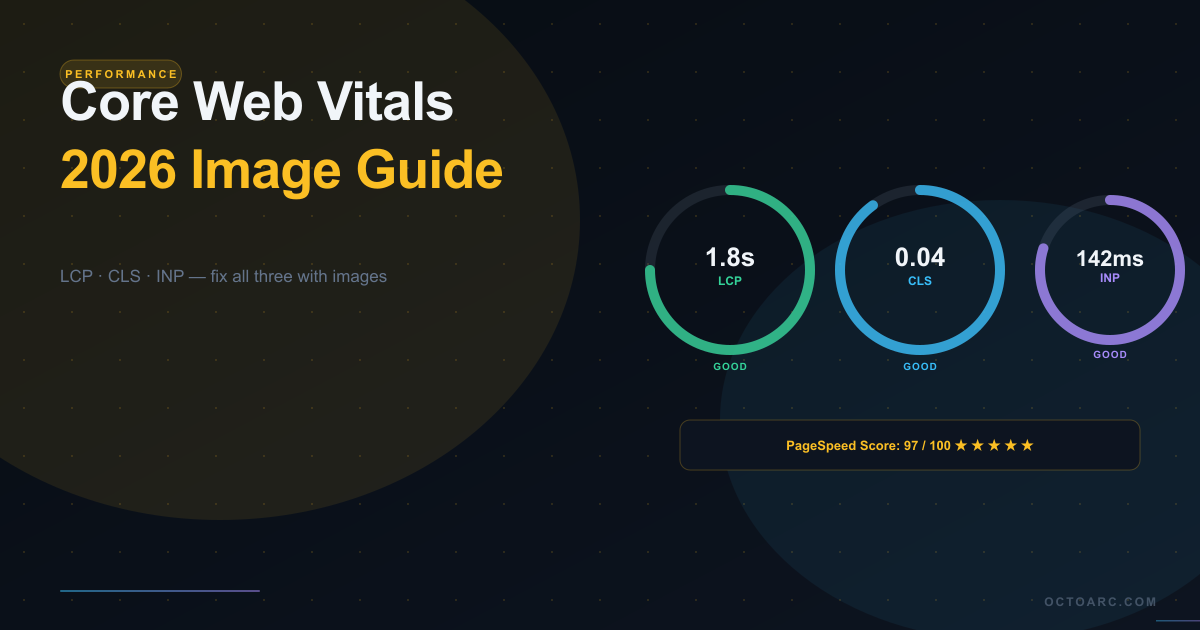
Google rolled out Core Web Vitals as a ranking signal in June 2021 and has been refining the metrics ever since. In 2024, INP (Interaction to Next Paint) replaced FID (First Input Delay) as the interactivity metric. In 2025, Google tightened the thresholds for "Good" scores and expanded the weight of Core Web Vitals in ranking calculations. In 2026, if your Core Web Vitals are poor, you are losing rankings to competitors with identical content who simply optimized their images.
What Are Core Web Vitals?
Core Web Vitals are three user experience metrics that Google uses to measure page quality. They measure loading performance, visual stability, and interactivity — the three dimensions of how a page feels to use, not just how fast it loads in raw milliseconds.
LCP — Largest Contentful Paint
LCP measures how long it takes for the largest visible element in the viewport to render. On most websites, the LCP element is a hero image, a product photo, or a large banner. Google's target: LCP under 2.5 seconds is "Good", 2.5–4 seconds is "Needs Improvement", over 4 seconds is "Poor". Images that are oversized, served in outdated formats, or not preloaded are the primary cause of poor LCP scores on WordPress sites.
CLS — Cumulative Layout Shift
CLS measures unexpected visual shifts — when elements move on screen as the page loads. Images without explicit width and height attributes are the leading cause of CLS on WordPress sites. When a browser doesn't know an image's dimensions before it loads, it cannot reserve space for it in the layout, causing content below it to jump down when the image appears. Google's target: CLS under 0.1 is "Good".
INP — Interaction to Next Paint
INP measures how quickly the page responds to user interactions (clicks, taps, keyboard input). While primarily a JavaScript concern, heavy unoptimized images that consume main thread resources during decode can delay interaction responsiveness. Google's target: INP under 200ms is "Good".
How Images Affect Each Core Web Vitals Metric
Images and LCP
Since the LCP element is almost always an image, everything about how that image is delivered directly determines your LCP score. The three largest LCP image improvements, ranked by impact:
- Format conversion to WebP or AVIF — reduces file size 25–80%, directly speeding up download time
- Adding fetchpriority="high" to the LCP image — tells the browser to prioritize this resource above all others
- Serving the hero image from the same origin or a fast CDN — avoids DNS lookup, connection, and TLS negotiation overhead
Images and CLS
Every img element on your site should have explicit width and height attributes. The browser uses these to calculate the image's aspect ratio before the image loads, reserving the correct space in the layout and preventing the shift. WordPress 5.5+ added width and height attributes to images inserted via the media library, but many themes and plugins still insert images without these attributes. A site audit for missing width/height attributes is essential for any CLS remediation effort.
The WordPress Image Stack — What's Actually Slowing You Down
A typical WordPress site generates images through four channels, each with its own optimization requirements:
- Media Library uploads — handled by WordPress core and plugins; need format conversion and compression
- Theme header and hero images — often hardcoded in theme templates; need manual optimization and fetchpriority
- Plugin-generated images — product photos in WooCommerce, gallery plugin images; need plugin-level format support
- Page builder backgrounds and section images — stored as post meta; require URL rewriting at the output level
The Image Optimization Stack for WordPress in 2026
Step 1: Convert All Images to WebP
WebP is the baseline format for web images in 2026. It delivers 25–34% smaller file sizes than JPEG at equivalent quality and 26% smaller than PNG for lossless images. Server-side PHP conversion using PHP's GD library is the fastest implementation path — no API, no per-image cost, no privacy concern. Use a plugin that converts existing images in bulk and automatically converts all future uploads.
Step 2: Implement Proper Lazy Loading
All images below the fold should have loading="lazy". WordPress 5.5+ adds this attribute automatically to all images inserted via the block editor, but images in custom code, theme templates, and some plugins may not have it. Never add loading="lazy" to the LCP image — the browser needs to start downloading it immediately, not defer it.
Step 3: Preload the LCP Image
Add a rel="preload" link for your LCP image in the head of your page. For a dynamic WordPress site where the hero image changes per page, this requires either a plugin that injects the preload link based on the detected LCP element, or custom PHP that reads the current page's featured image and outputs the preload tag.
Step 4: Implement Responsive Images with srcset
WordPress generates multiple image sizes on upload (thumbnail, medium, large, full). The srcset attribute uses these to deliver the appropriately sized image for each screen size — a mobile device receives a 400px image instead of a 1600px image. This alone can reduce image payload by 70% on mobile. Ensure your theme uses wp_get_attachment_image() or the_post_thumbnail() with size parameters, rather than inserting full-resolution images everywhere.
Step 5: Set Explicit Dimensions on Every Image
Audit your site with a tool like PageSpeed Insights or Chrome DevTools' "Layout Instability" report to find images that cause CLS. For each one, add explicit width and height attributes that match the image's intrinsic dimensions. In CSS, ensure the image container has aspect-ratio set to match if the image is responsive (max-width: 100%).
Measuring Your Image Optimization Results
After implementing WebP conversion, lazy loading, and proper dimensions, measure the improvement with:
- Google PageSpeed Insights — tests both mobile and desktop, shows Core Web Vitals from field data
- Google Search Console — Core Web Vitals report shows real-user data from the past 28 days for all your pages
- WebPageTest.org — detailed waterfall charts showing exactly which resources are causing delays
- Chrome DevTools — Network tab filter by "Img" to audit all image requests, size, and format
Expected Results: What Good Image Optimization Looks Like
On a typical WordPress content site, implementing WebP conversion, proper lazy loading, srcset, and explicit dimensions can improve LCP by 0.5–2 seconds on mobile, drop CLS from "Poor" to "Good", and reduce total page image payload by 40–70%. A page that scored 55 on PageSpeed mobile commonly reaches 85–95 after these changes alone, before any JavaScript or server-level optimizations.
The ranking impact is real but delayed — Google typically takes 28+ days to reflect improved Core Web Vitals in ranking calculations based on updated field data. If you implement these changes and check Search Console in 6 weeks, you should see the Core Web Vitals report shift from "Poor/Needs Improvement" pages to "Good" pages across your site.